Cohere Embed 多语言向量 API Key 申请教程 Cohere Embed 多語言向量 API Key 申請教程 Cohere Embed API Key Setup Guide

1

访问开放平台与注册登录 訪問開放平台與註冊登錄 Step 1: Access Console & Sign In

访问 Cohere Dashboard 控制台:

https://dashboard.cohere.com/ 🚀 一键直达

注册开发者账号并登录控制台。

訪問 Cohere Dashboard 控制台:

https://dashboard.cohere.com/ 🚀 一鍵直達

註冊開發者賬號並登錄控制台。

Open Cohere Dashboard Console:

https://dashboard.cohere.com/ 🚀 Direct Access

Log in to your developer console.

2

充值账户余额与 Billing 配置 充值賬戶餘額與 Billing 配置 Step 2: Top Up Account Balance & Billing

进入 Cohere Dashboard 控制台【Billing】页面,绑定信用卡并充值余额,确保额度充裕以使用 Cohere Embed 向量模型。
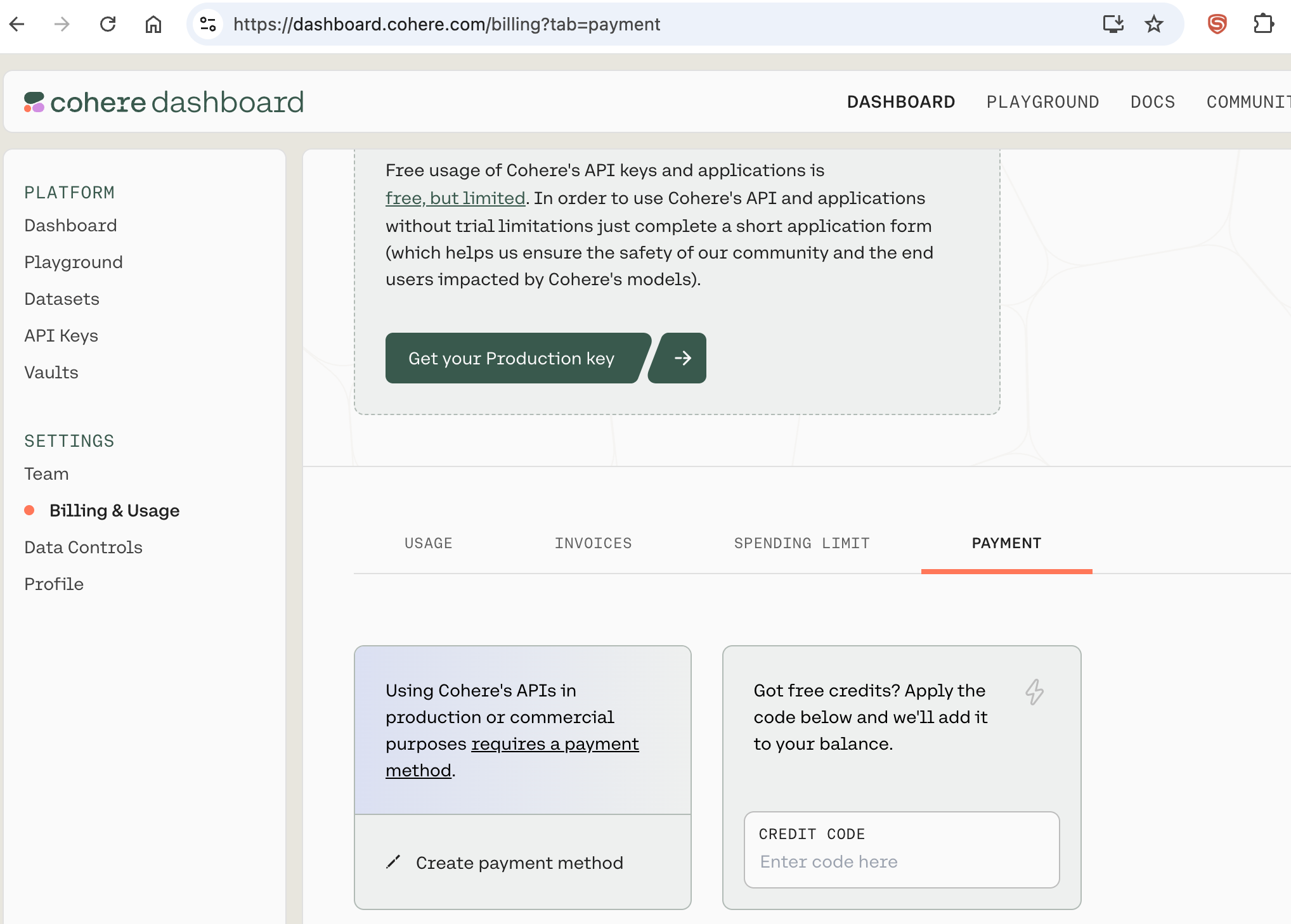
進入 Cohere Dashboard 控制台【Billing】頁面,綁定信用卡並充值餘額,確保額度充裕以使用 Cohere Embed 向量模型。

Navigate to Cohere Dashboard 【Billing】 page, add payment card and top up balance to ensure active API quota.

Cohere 账户充值与 Billing 界面截图
3

创建 API Key 密钥 創建 API Key 秘鑰 Step 3: Generate Official API Key

进入【API Keys】页面,点击【New API Key】生成 API Key,并妥善复制保存秘钥。

⚠️ 注意:密钥仅完整显示一次,请妥善保存在安全的本地存储中。
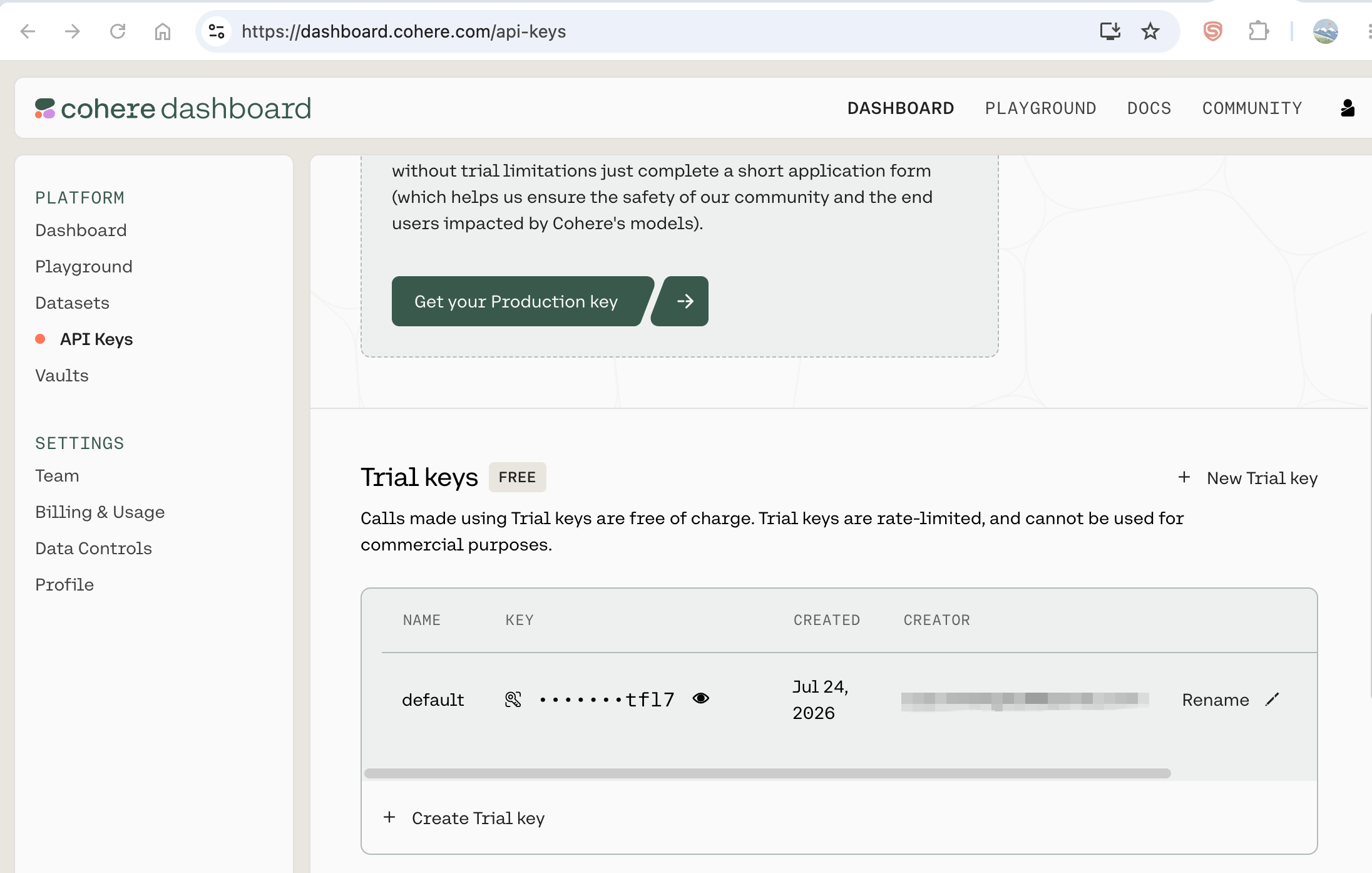
進入【API Keys】頁面,點擊【New API Key】生成 API Key,並妥善複製保存秘鑰。

⚠️ 注意:秘鑰僅完整顯示一次,請妥善保存在安全的本地存儲中。

Navigate to the API Keys page, click "New API Key", and copy the generated key immediately.

⚠️ Notice: Secret key will be displayed only once. Keep it safe in your local storage.
Cohere API Key 管理界面截图
4

在 SearchDog 中粘贴配置 在 SearchDog 中粘貼配置 Step 4: Configure Credentials in SearchDog

打开 SearchDog 客户端 -> 【设置】 -> 选择 Cohere Embed -> 粘贴 API Key 并保存。

打開 SearchDog 客戶端 -> 【設置】 -> 選擇 Cohere Embed -> 貼入 API Key 並保存。

Launch SearchDog Desktop App -> Go to 【Settings】 -> Select Cohere Embed -> Paste your API Key and save.

向量化 (Embedding) 配置预览

用于将简历片段和搜索查询发送到你选择的向量模型服务商并转换为向量,以实现语义搜索。

向量模型服务商:
Cohere embed-v4.0
Embedding 授权码:
co-7b2e8f9a••••••••••••••••••••••••9a1f
API 地址:
https://api.cohere.com/v2
模型:
embed-v4.0
向量维度:
1024
← 返回教程列表 下载 SearchDog 客户端